
Invoices, deposits & payments
Deer Track collects payments through Stripe. Your client pays and the money lands directly in your own bank accounton Stripe’s normal payout schedule — Deer Track never holds or routes client funds.
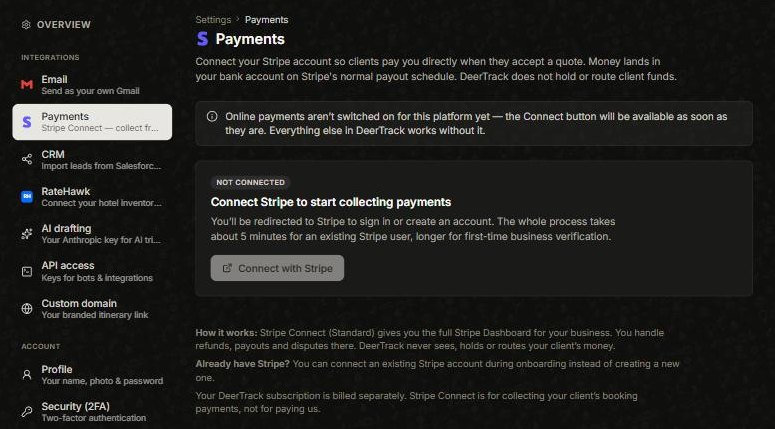
Connect Stripe
Open the avatar menu → Settings → Payments and choose Connect with Stripe. You’ll sign in to Stripe (or create an account) — about five minutes for an existing Stripe user, longer if it’s your first time and Stripe needs to verify your business. You get the full Stripe dashboard, where you handle payouts, refunds and disputes.
Two things to know: only the organization owner can connect Stripe, and online payments are switched on account by account — if the Connect with Stripebutton isn’t active yet, it’s being turned on and everything else in Deer Track works in the meantime.
Bill a client with an invoice
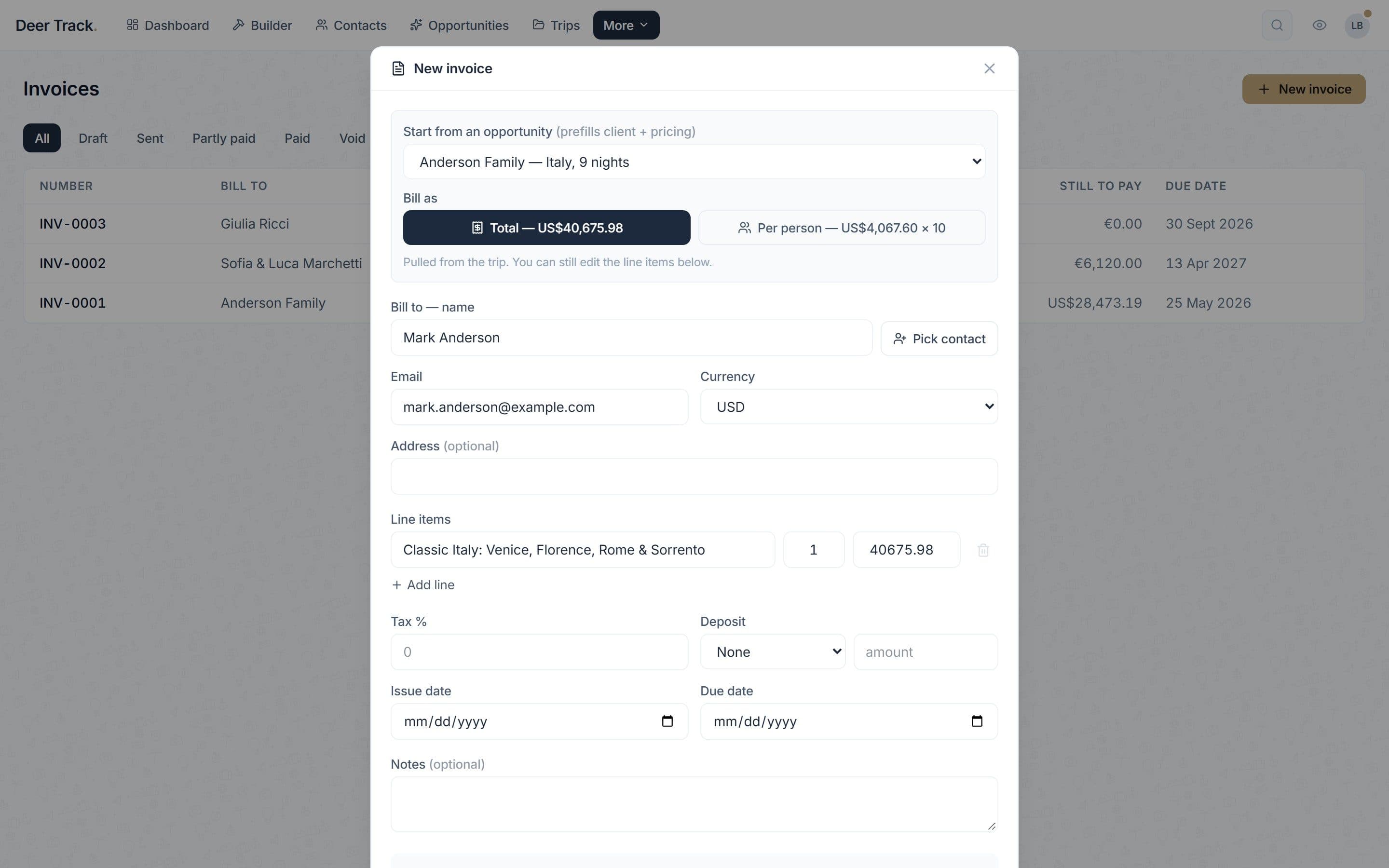
There are two ways to get paid: an invoice with a deposit and balance (below), or a one-off card payment link on the itinerary itself (see the end of this article). For invoices, open Invoices (under More) → New invoice and Start from an opportunity, or use the receipt icon on a trip in the deal (Create an invoice from this trip). The client, currency and trip total fill in. Choose Bill as Total or Per person (the amount × the number of travellers), add lines or a Tax %, set the Issue date and Due date, then Create draft invoice.
01Start from the deal
Pick the opportunity and the client, currency and trip total fill in. Bill it as one total or per person.
- Start from the deal: Pick the opportunity and the client, currency and trip total fill in. Bill it as one total or per person.
- Add a deposit: A percentage of the total or a fixed amount. The deposit is due on the issue date, the balance on the due date.
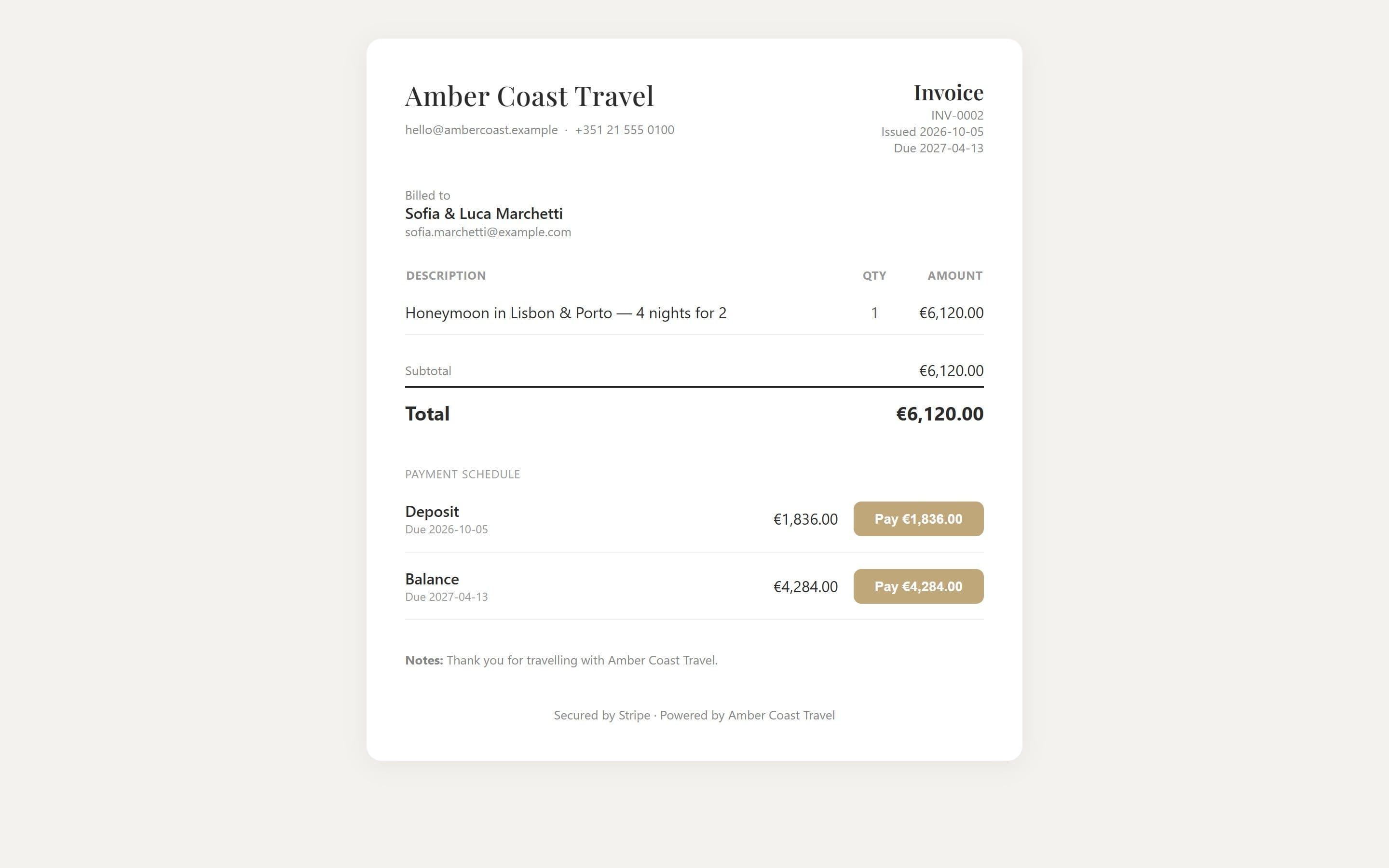
- Send it — or copy the pay link: Send emails the invoice with a View & pay button. Copy gives you the same link to paste into WhatsApp or your own email.
- Your client pays online: With your Stripe account connected, each instalment has its own Pay button and the money goes to you, with no platform fee.
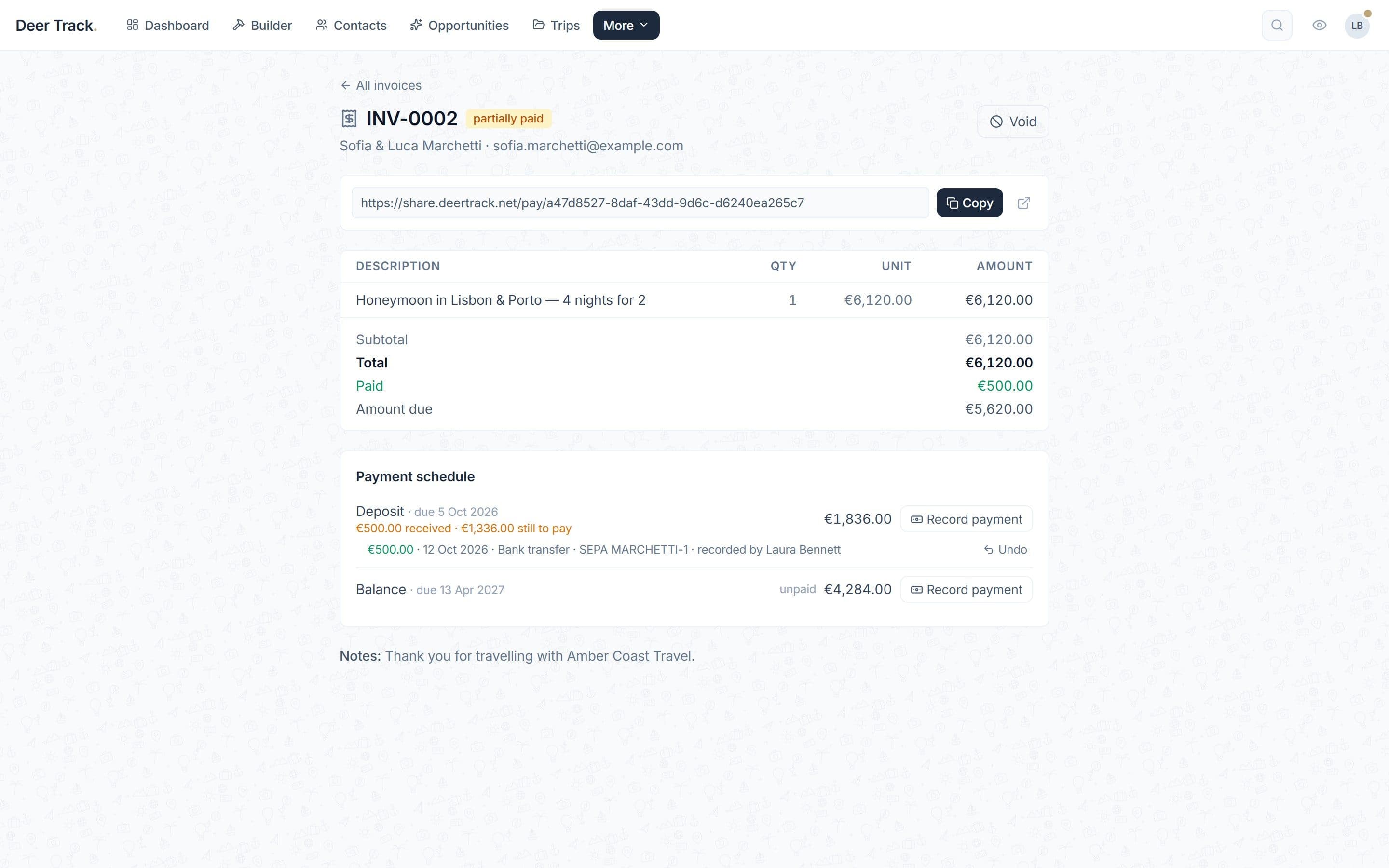
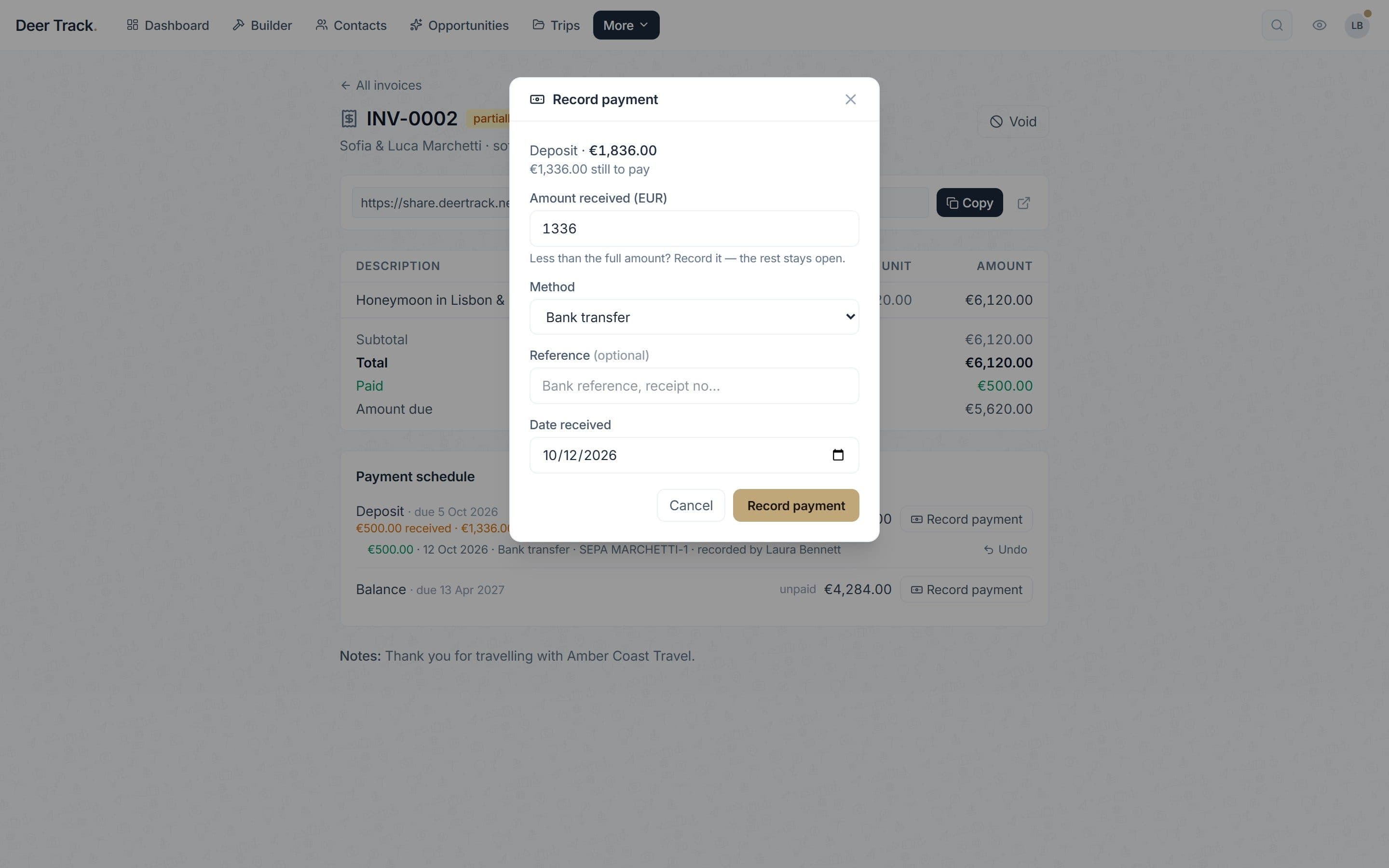
- Paid by bank transfer? Record it: Record the amount received — all of it or just part — with the method, a reference and the date. Anything left stays open.
- Always know what's still due: Each payment is listed under its instalment with its own Undo; a part-paid deposit shows what came in and what's still to pay.
Take a deposit
The Deposit control takes None, a % of total or a Fixed amount. With a deposit, the invoice gets a Payment schedule: the Deposit is due on the issue date and the Balanceon the due date. Without one it’s a single Full payment. Currencies: EUR, USD, GBP, CHF, SEK, NOK and DKK.
Send it and share the pay link
Drafts can be edited; once you hit Send the invoice is Sent and the client gets an email with a View & pay invoice button. No email on file? Copy the pay link and send it your own way. With your Stripe account connected, each unpaid instalment on the pay page has its own Pay button. Without Stripe, the page asks the client to pay by bank transfer, quoting the invoice number — then you record the payment (below). As money comes in the invoice moves to Partly paid and then Paid.
Paid by bank transfer or cash?
Managers and the owner can click Record paymenton any instalment that isn’t fully paid. Enter the Amount received— it’s prefilled with what’s still due, and a smaller amount is fine: the rest stays open — then choose the Method (Bank transfer, Cash, Card or Other), add a Reference and the Date received. A part-paid instalment shows what was received and what’s still to pay, and each payment is listed underneath with its own Undo(Stripe payments are refunded in Stripe). The client’s pay page shows the same, and its Pay button charges only the rest.
Voiding an invoice
Voidcancels an invoice that isn’t paid and switches its pay link off. It can’t be undone, so create a new invoice if you need to bill again.
A card payment link on the itinerary
For a single payment — the full price or a deposit — you can skip the invoice. On the deal, click the card icon on the trip (Create a card payment link), pick Full price or Deposit (or type an Amount) and Create link. The client’s itinerary then shows Pay now & secure this trip; once they pay, the trip shows Paid. The link can be updated or turned off at any time. It’s available once your own Stripe account is connected, to the trip’s creator and to managers.
Where the money goes
Payments land in your bank on Stripe’s payout schedule, and you manage refunds and payouts from your Stripe dashboard. Your Deer Track subscription is billed separately — Stripe here is only for collecting your clients’ booking payments.
Did this answer it?
If not, a real human reads every email.