
Opportunities & your pipeline
An opportunityis a deal — one client, one trip they might book. The pipeline on your dashboard shows every open deal by stage, what it’s worth and what needs doing next.
01Your day on one page
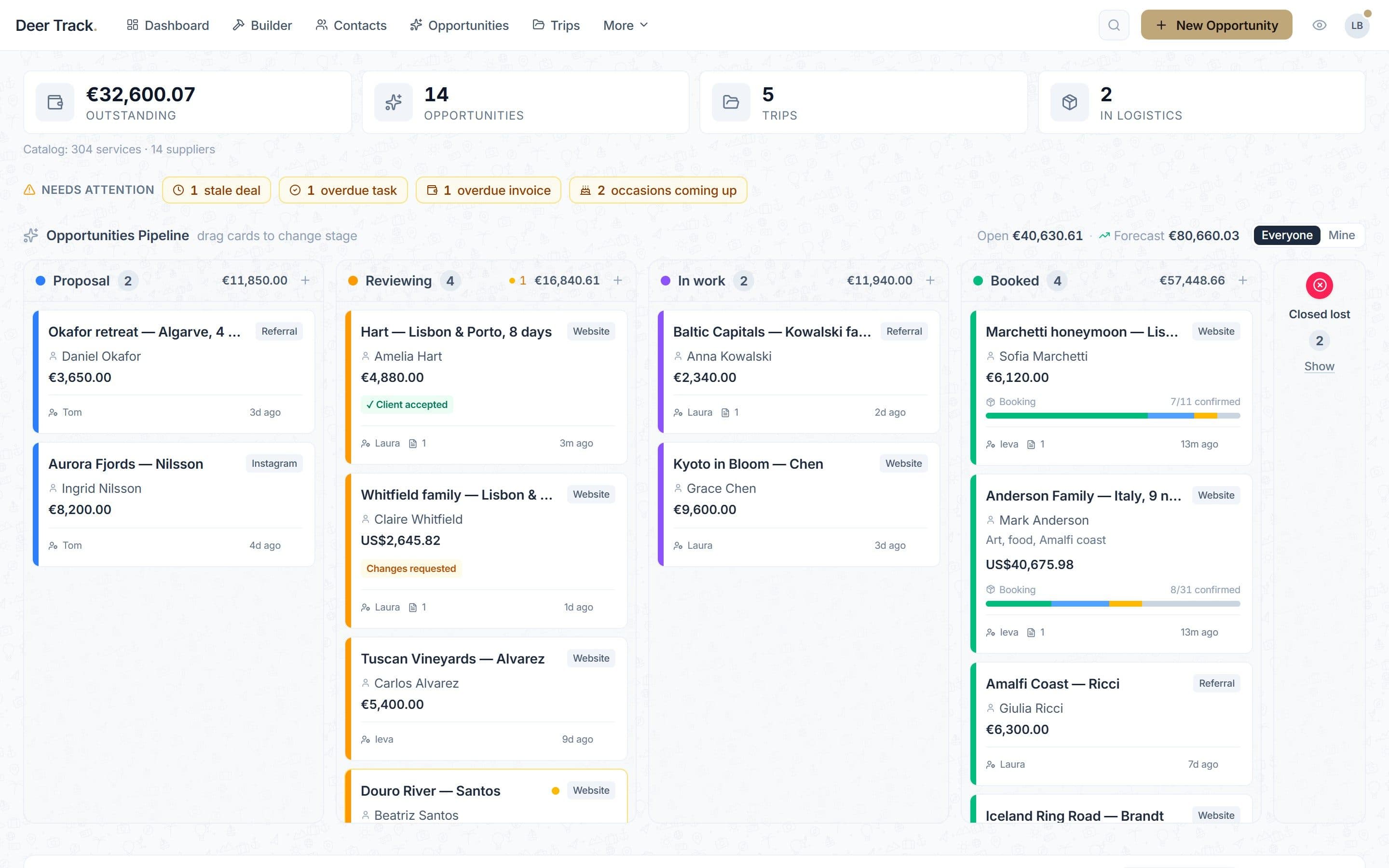
Money outstanding, open opportunities, trips and logistics across the top; the pipeline underneath.
- Your day on one page: Money outstanding, open opportunities, trips and logistics across the top; the pipeline underneath.
- What needs you today: Stale deals, overdue tasks, overdue invoices and client occasions coming up — each one click away.
- A card for every deal: Contact, value and source at a glance. Badges show when the client accepted the itinerary or asked for changes. Drag a card to change stage.
- Booked deals show booking progress: Once a trip is handed to logistics, its card shows how many supplier bookings are confirmed.
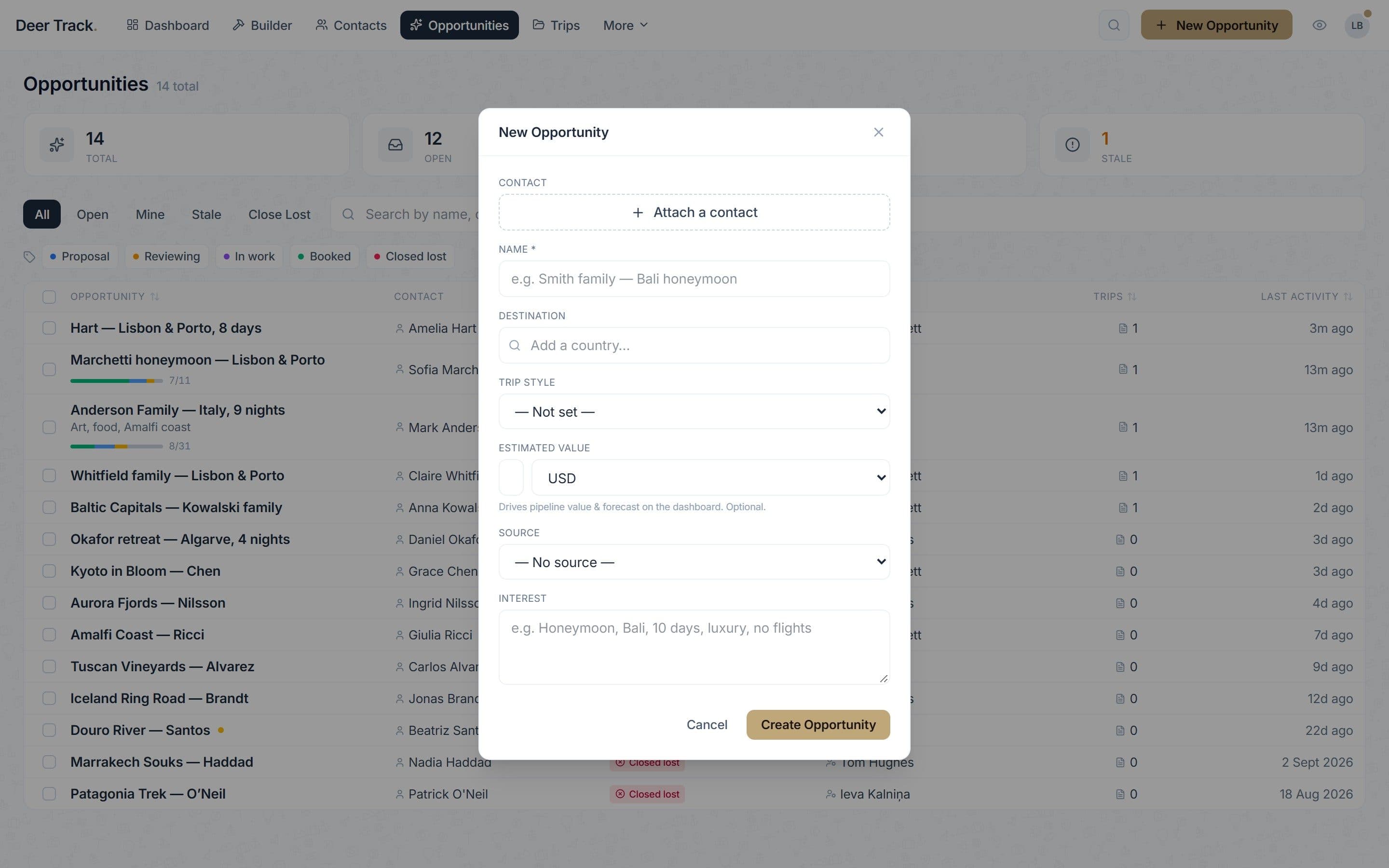
- A new opportunity in seconds: Contact, name, destination, trip style, estimated value and source. The value feeds the pipeline total and forecast.
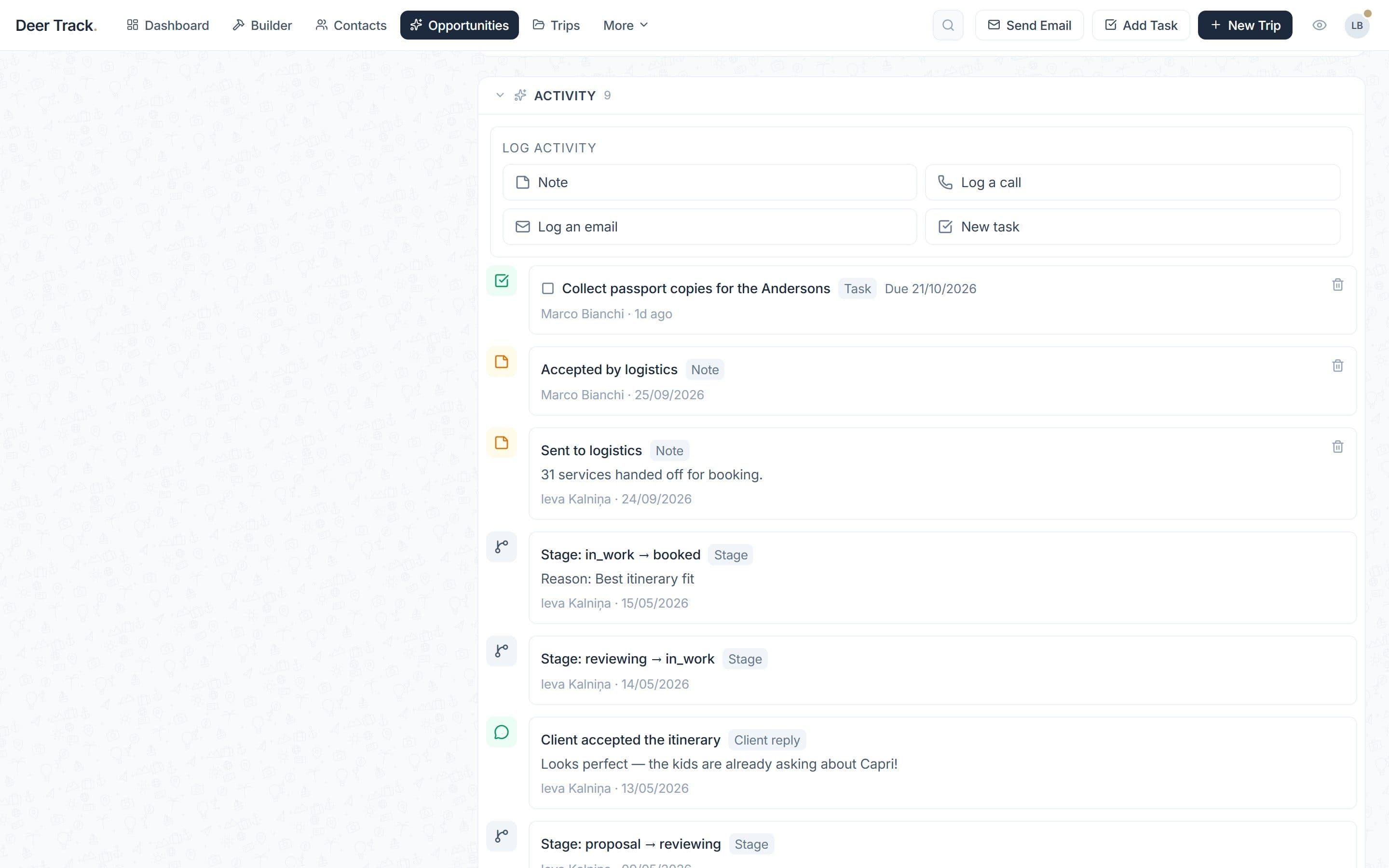
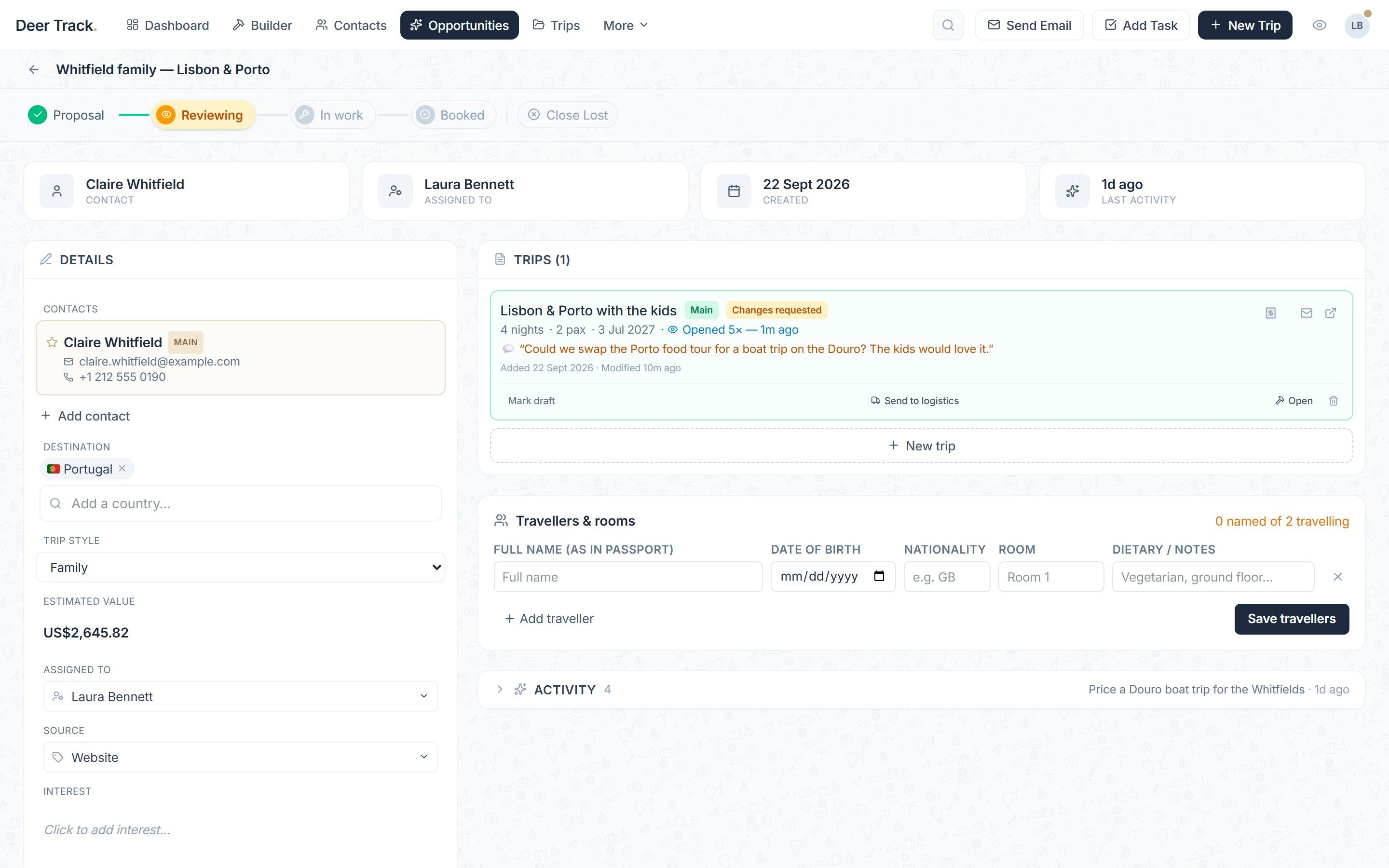
- Everything on one timeline: Calls, emails, tasks, stage moves, the client's reply and the hand-off to logistics — in order, with who did what.
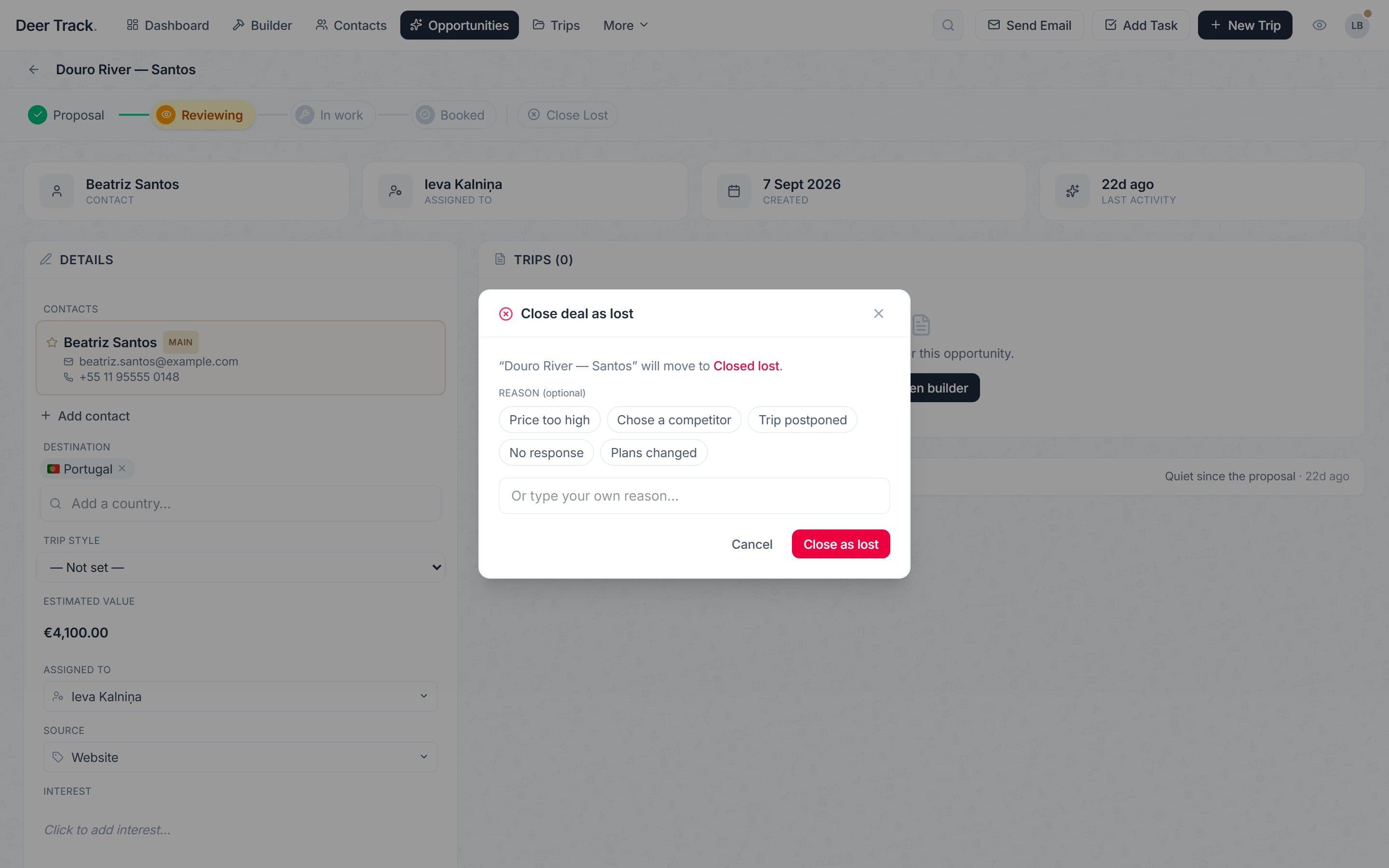
- Close lost — with a reason: Pick a reason or write your own, so you can see later why deals slip away.
Create an opportunity
Click New Opportunity (on the dashboard, the Opportunities page or a contact), or the + at the top of a pipeline column to add a deal straight into that stage. Fill in the Contact, a Name(for example “Smith family — Bali honeymoon”), the Destination, Trip style, Estimated value, Source and Interest, then Create Opportunity. The estimated value is optional, but it’s what drives your pipeline total and forecast.
The stages
Deals move through Proposal → Reviewing → In work → Booked, with Closed lostfor the ones that don’t land. Drag a card on the dashboard, or use the stage steps at the top of the deal page; every move is logged on the timeline. The forecast weights each stage — a deal in Reviewing counts for more than one still in Proposal.
One move happens on its own: when the client opens the deal’s main itinerary, a deal still in Proposal moves to Reviewing. A client accepting the itinerary doesn’t change the stage — you do, when you’re ready.
Reading a card
Each card shows the deal name, contact, value and source, who owns it and when it last had activity. Badges show ✓ Client accepted or Changes requested, and once the trip is with logistics, a bar shows how many supplier bookings are confirmed. An amber dot means the deal is stale— no activity for 14 days or more — and it’s counted in Needs attention. Switch between Everyone and Mine to see your own deals only.
The deal page
Open a deal to see its contacts (one is the Main contact), its trips (one Main trip, others secondary or draft), the Travellers & rooms list for the main trip, documents and the timeline. Each trip shows how often the client opened it and their answer, with any comment.
Log calls, emails and tasks
Use Log activity to add a Note, Log a call, Log an email or a New task with a due date. Tasks show on the dashboard under Open Tasks (Today, 7 days or All), grouped into overdue, today, upcoming and no date.
Won or lost
Moving a deal to Booked offers to send its main trip to Logistics, and you can add a Won reason on the deal. To close a deal as lost, click Close Lost and pick a reason — Price too high, Chose a competitor, Trip postponed, No response, Plans changed — or type your own. Reasons feed Reports, so you can see where deals slip away.
Did this answer it?
If not, a real human reads every email.