
Pricing: markup, margin, VAT & currencies
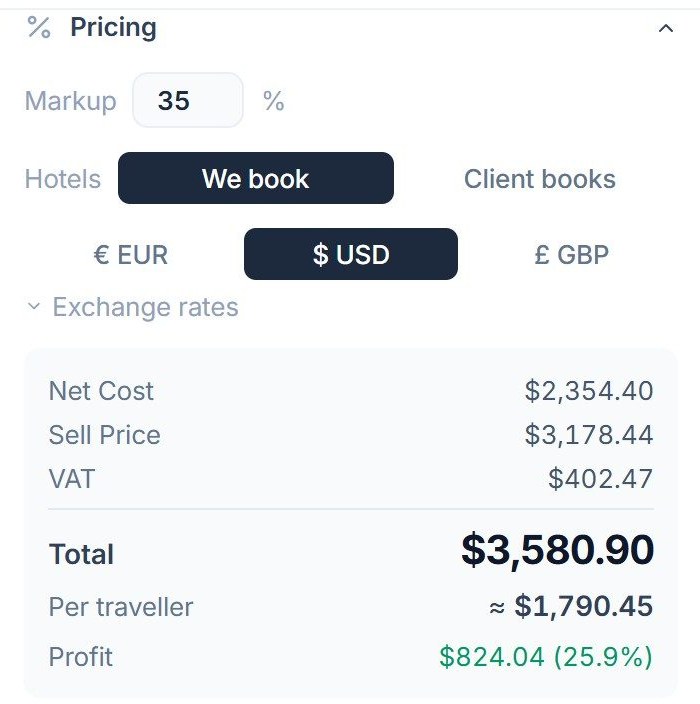
Deer Track prices a trip live as you build it. Every service carries a cost, and the right-hand Pricing panel turns those costs into the number your client sees. Here is what each control does.
Markup or margin
By default you set a Markup % — your cost times (1 + markup). In Advanced you can switch the Pricing mode to Margin, where the percentage is how much of the selling price is profit (cost ÷ (1 − margin)). Change the top-level number and Deer Track offers to apply it to every service at once, or you can set a different markup on an individual service.
Per person or flat
Each service is priced Per Person or as a Flat Rate (a guide can be Guide + Tickets). The number of Travellers drives the per-person items, so changing party size re-prices the trip correctly.
Group-size prices
Guides, tickets and transport often cost a different amount depending on how many people go. Give the service the Tour pricing type, add a cost line (+ Guide, + Tickets, + Transport or + Other) and set Priced to by group size. Then fill in a ladder — Group of, Whole group pays, Per person — with + Add a size. Group sizes in between are estimated for you and marked in amber. Importing a catalog? Use a Group prices column such as 2:280; 3:335. Clients never see the ladder — only the finished price.
Seasons and hotel room types
A service can carry Seasonal Pricing: add a season, name it and pick the months it covers (seasons run by month, not by exact dates). Hotels can be priced by Rates by room type — a nightly price per room type, with seasons, a Single use price and an Extra bed price.
Currencies & VAT
Switch the trip currency with the € EUR / $ USD / £ GBP buttons; open Exchange rates to adjust the rates or reset them to defaults. VAT is carried on each service and rolls up into the VAT line of the summary, so the Totalis always tax-correct. Travel agents on the margin scheme can switch the agency’s VAT scheme to Margin scheme (travel agents) in Settings → Branding.
Override the price or add a discount
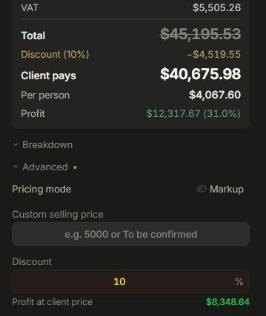
Under Advanced you can set a Custom selling priceto override the calculated total (handy for a round number or a “to be confirmed”), or apply a Discount as a percentage off. The Profitline updates so you always see what you’re making.
Selling through a partner agency? Set a Partner commission % on the trip: Deer Track shows what the partner keeps, what you receive and your Profit after commission. The commission never appears on anything the client sees, and contacts marked as a partner agency fill it in for you. Line prices on the itinerary are controlled by Show prices in itinerary — the total always shows.
Compare options for a client
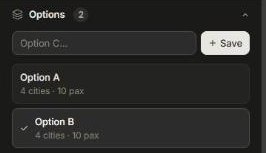
Torn between two versions of a trip? Save the current one as an Option (A, B…), build the alternative, and Compare them — the client sees the options side by side and picks.
Did this answer it?
If not, a real human reads every email.