
Inviting your team & roles
You can add your colleagues to Deer Track and give each one the right level of access — a salesperson doesn’t need the booking board, and whoever does the bookings doesn’t need to see deal values.
Invite a teammate
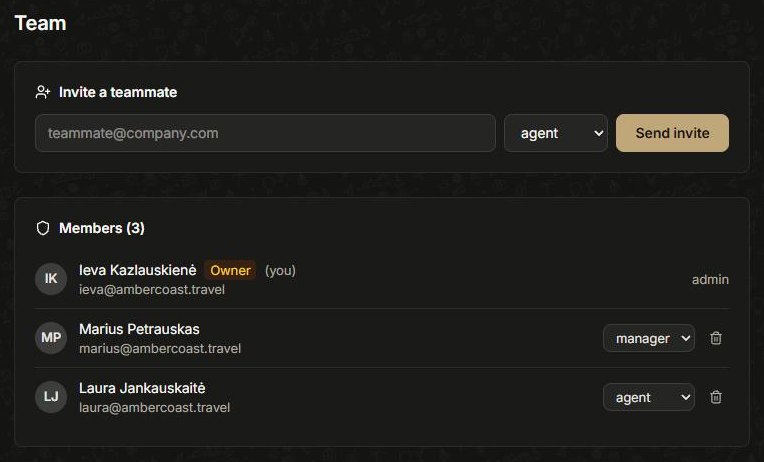
Open the avatar menu → Settings → Team. Type their email into Invite a teammate, pick a role, and click Send invite. They get an email to set their own name and password and join. (Only the account owner can invite teammates and change roles — managers can view the team but not edit it.)
The roles
- Owner — the account owner. Full access, and the only one who can connect Stripe and manage billing.
- Manager — full access to everything: the pipeline, Builder, trips, logistics, team and settings.
- Agent — the sales role. Works the dashboard pipeline, Builder, Opportunities, Trips, Contacts and Invoices — but not the Logistics board or the team/admin screens.
- Logistics — the booking role. Works the Logistics board and suppliers, without the sales pipeline, the Builder or deal values.
Manage members
In the Memberslist, change someone’s role from the dropdown next to their name, or remove them. Removing a teammate frees their access immediately; their work stays in the workspace.
Did this answer it?
If not, a real human reads every email.