
Managing your trips
Once you’ve built a trip, everything to track it lives across four places: Trips, Opportunities, Contacts and Logistics.
Your trips list
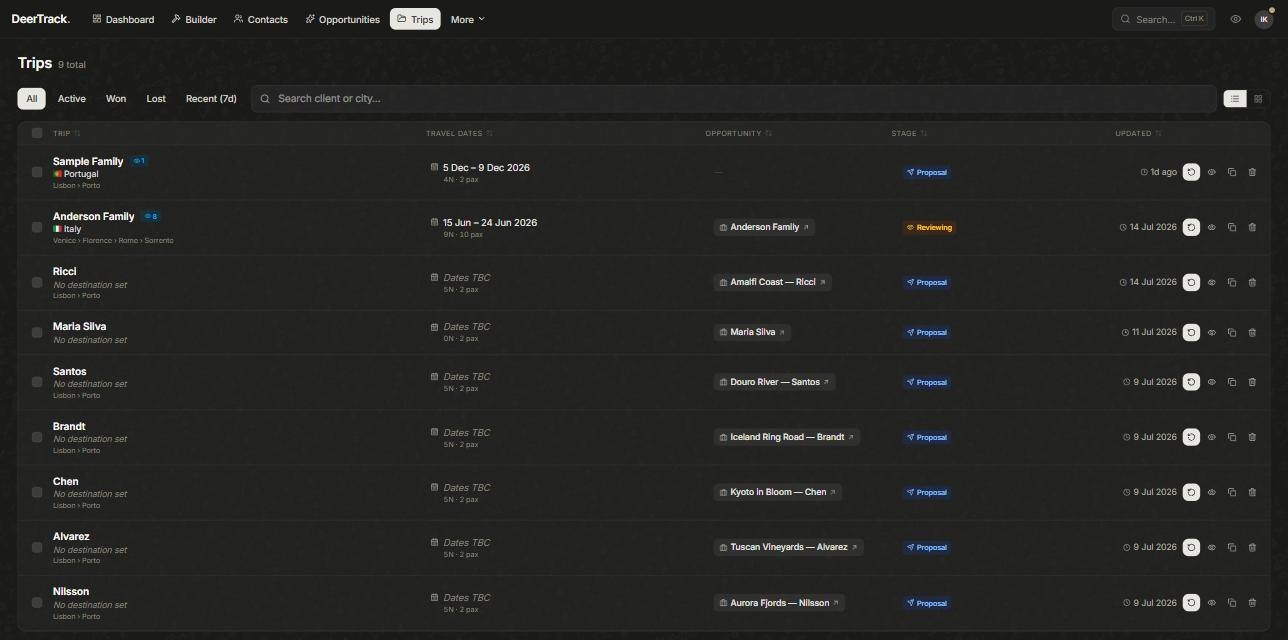
The Trips tab lists every saved trip. Filter by All, Active, Won, Lost or Recent, or search by client or city. Each row shows the client and destinations, travel dates, the linked Opportunity, its Stage, and when it was updated. The icons on the right let you reopen it in the Builder, preview the client itinerary, duplicate it, or delete it (deleted trips sit in Settings → Trash for 30 days).
The pipeline (Opportunities)
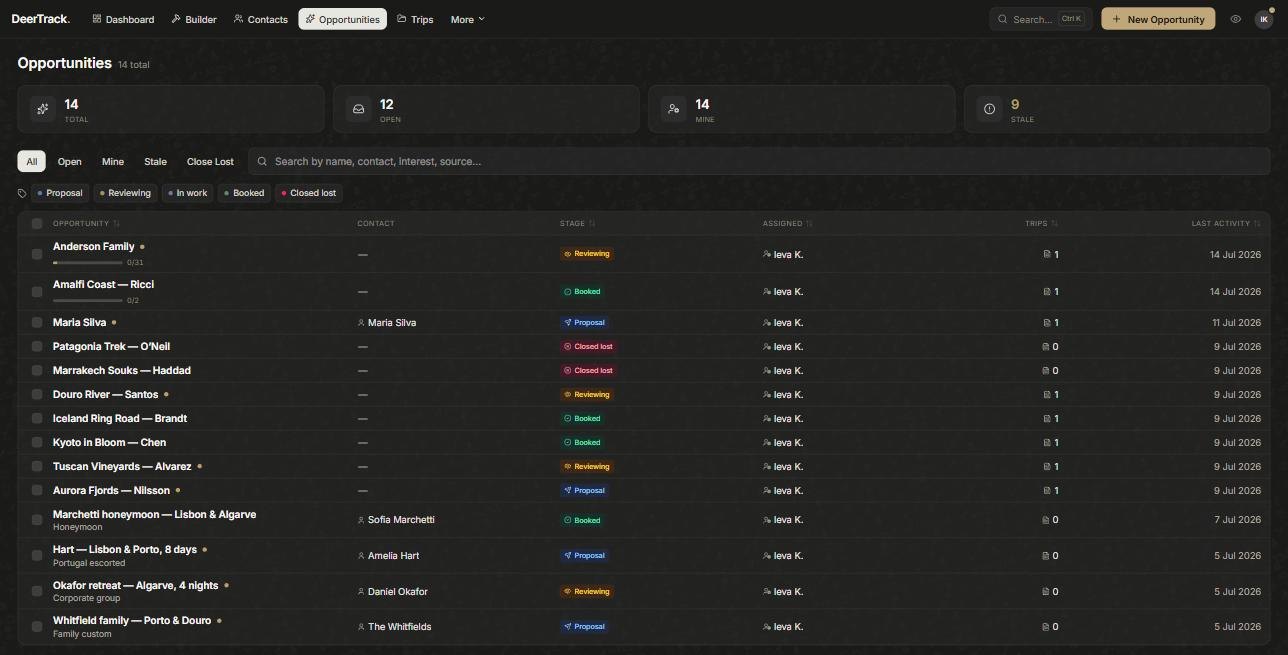
An Opportunity is a deal. It moves through stages — Proposal → Reviewing → In work → Booked, with Closed lostfor the ones that don’t land. Drag a card between columns on the dashboard to change its stage. You link a trip to an opportunity from the Builder, so the deal and its itinerary stay together. The full tour is in Opportunities & your pipeline.
Contacts
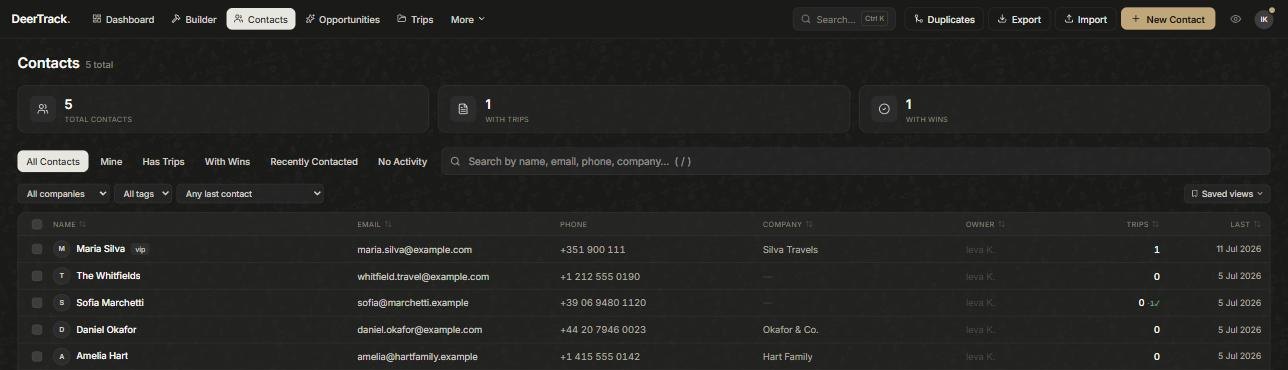
Contacts is your client book. Each record holds their details, tags, owner and their trips. You can Import and Export contacts, and managers can merge duplicates so one client never shows up twice. More in Contacts & traveller details.
Hand off for booking (Logistics)
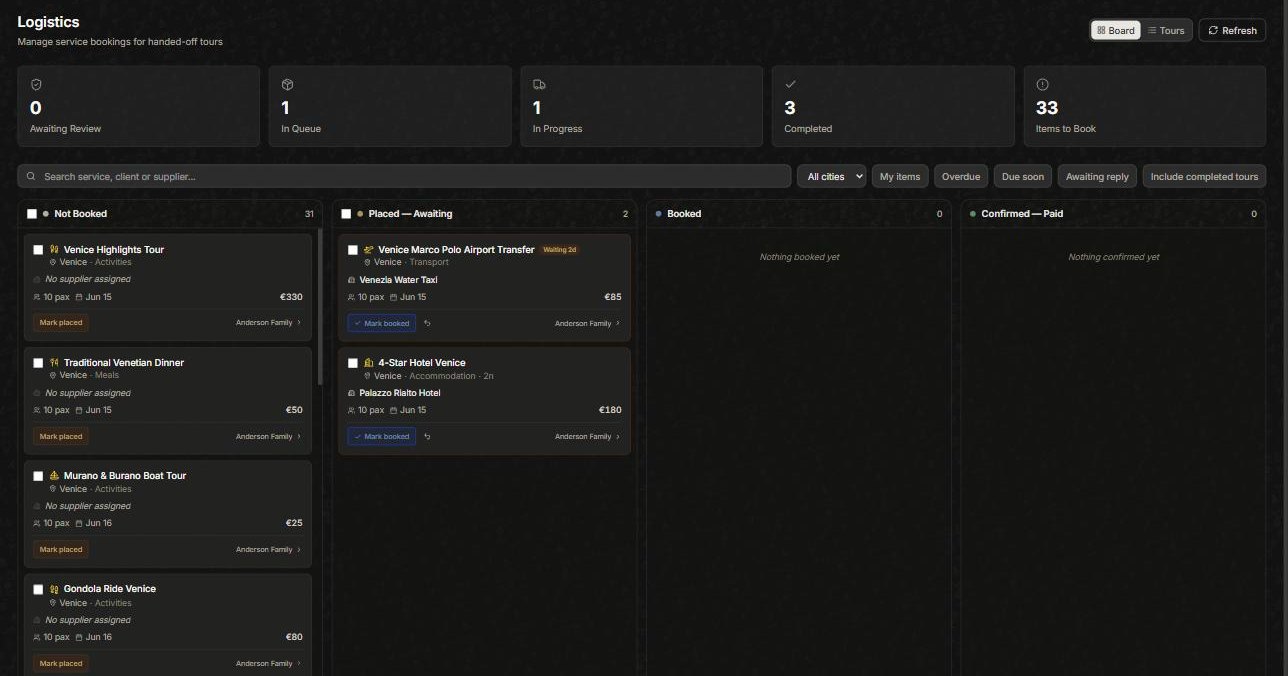
When you move a deal to Booked, Deer Track offers to Send to Logistics (its main trip); other trips on the deal have their own Send to logistics button. On the Logistics board they Accept it (or reject with a reason), then move each service through Not Booked → Placed → Booked → Confirmed, assigning suppliers and booking references as they go.
Did this answer it?
If not, a real human reads every email.